PianoLab

Piano · read · hear · practise · write

The music waits for you.

A piano score player and practice partner. It opens the MusicXML and MIDI files you already have, engraves them on the grand staff, lets the notes fall onto the keys — and when you practise, it waits at each chord until you play it, on a MIDI keyboard or the keys on screen. That is PianoLab.

  • · MusicXML and MIDI
  • · the grand staff and falling notes
  • · any MIDI keyboard
  • · fifteen languages
  • · no account

· For iPhone and iPad. Or try it first in your browser, with nothing to install
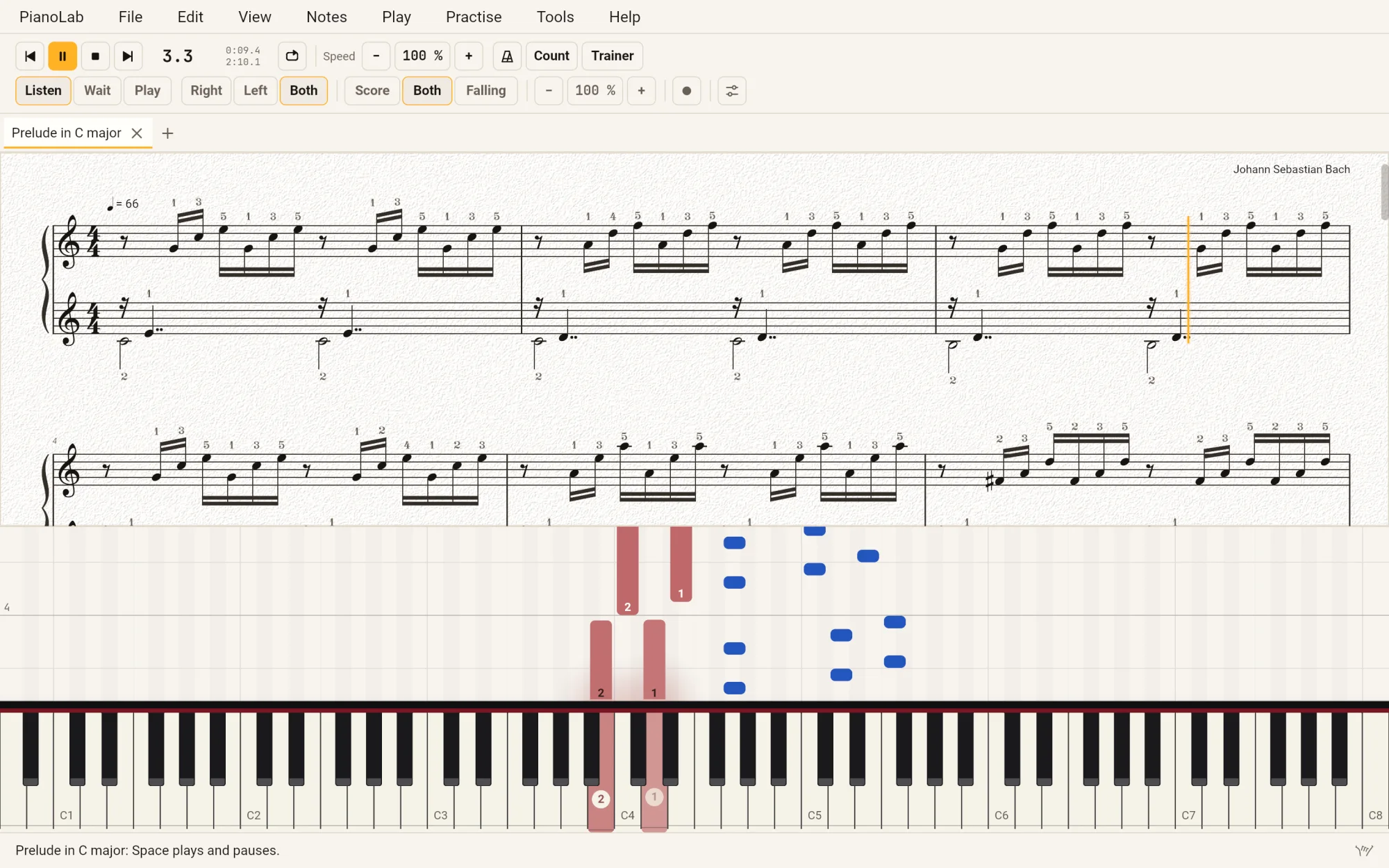
PianoLab playing Bach's Prelude in C major: the grand staff above with fingering over every note and the amber playback cursor in bar 3, the notes falling below it, red for the left hand and blue for the right, onto an 88-key keyboard where the two keys sounding are lit.
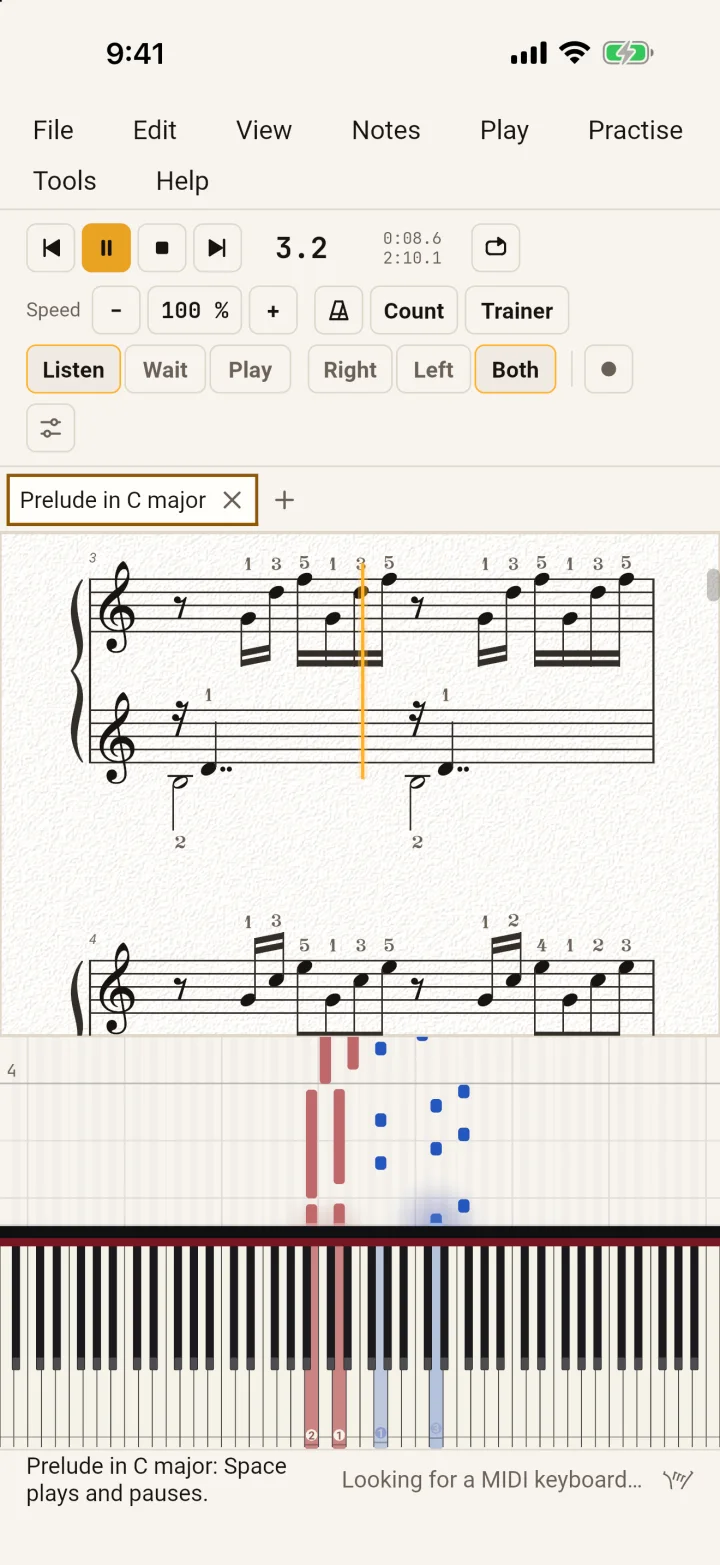
PianoLab on an iPhone, playing: the score above and the notes falling onto the keyboard below.

Real screens. Its own pieces.

Every picture on this page is PianoLab itself, as it draws its own window — on an iPhone and an iPad in Apple's simulator, and in a browser. Each is open on one of the four pieces it comes with — Twinkle, Twinkle, Little Star, Beethoven's Ode to Joy, the opening of Für Elise, and Bach's whole Prelude in C major, fingered from the first note to the last.

The same four are on its welcome screen, under Pieces to play, from Beginner to Intermediate, each saying what it teaches.

Practise

It waits at each chord until you play it.

Learning a piece is mostly the hard bars, slowly, one hand at a time. Plug in a MIDI keyboard or a digital piano — or play the keys on screen — and PianoLab listens to every note.
Wait for me.
Or play along.

  • Wait for me. The music holds at each chord until you play it, and starts when you do — so you can take a hard bar as slowly as it needs.
  • Play along. The music keeps time and every note is judged, coloured on the score as you go.
  • One hand at a time. Practise the right hand while PianoLab plays the left for you, then swap, then both.
  • A loop drawn on the score. Drag across the bars you want, slow them down, and let the speed trainer raise the tempo after each clean pass.
  • Gentle timing while a piece is new: half as forgiving again about what counts as on time.
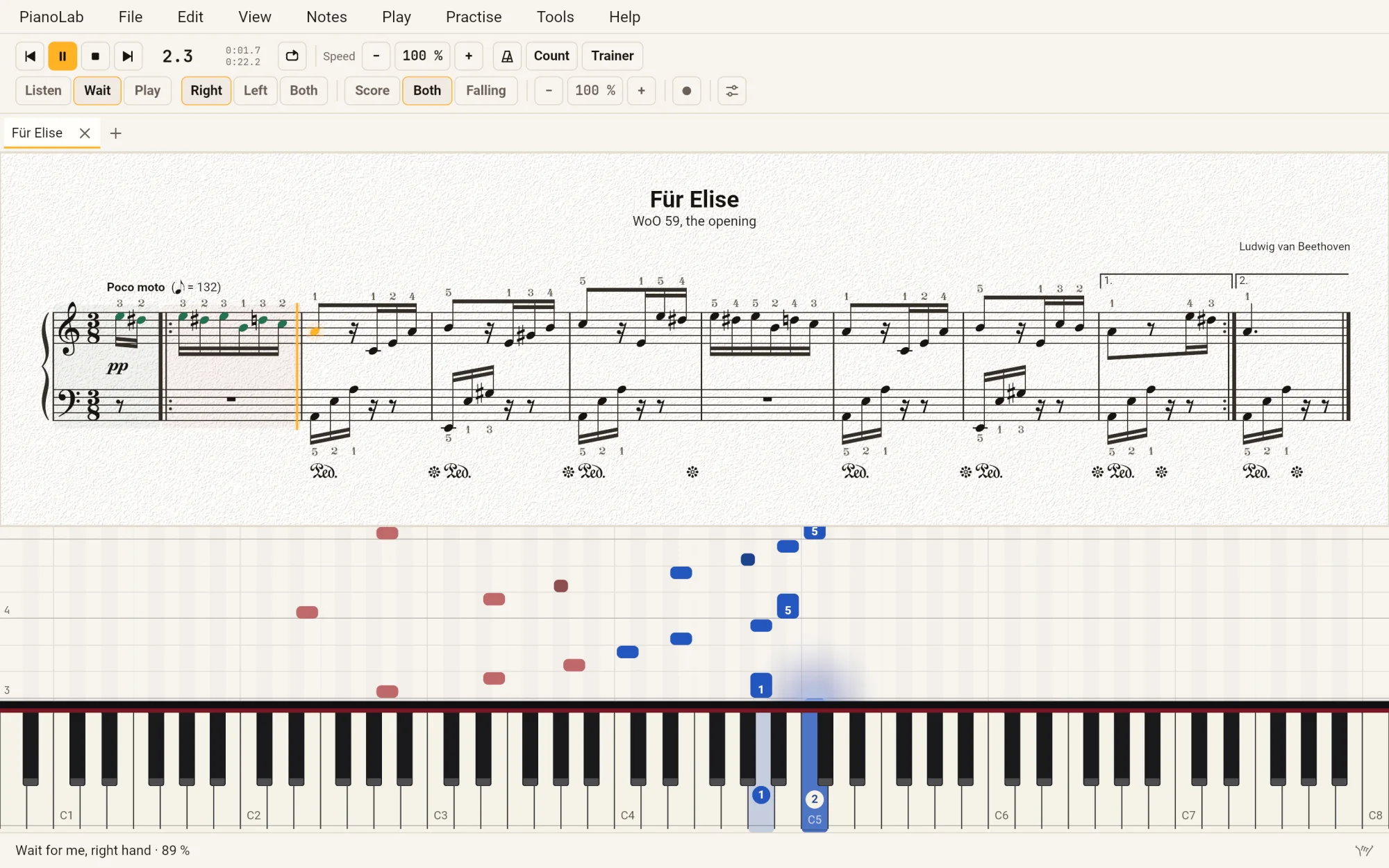
PianoLab with Für Elise, waiting for the right hand: the notes already played coloured green on the score, the next one lit on the keyboard with its finger, and the status line saying Wait for me, right hand, 89 %.
Für Elise, waiting for the right hand: what you played coloured on the score, the next note lit on the keys

Progress,
bar by bar.

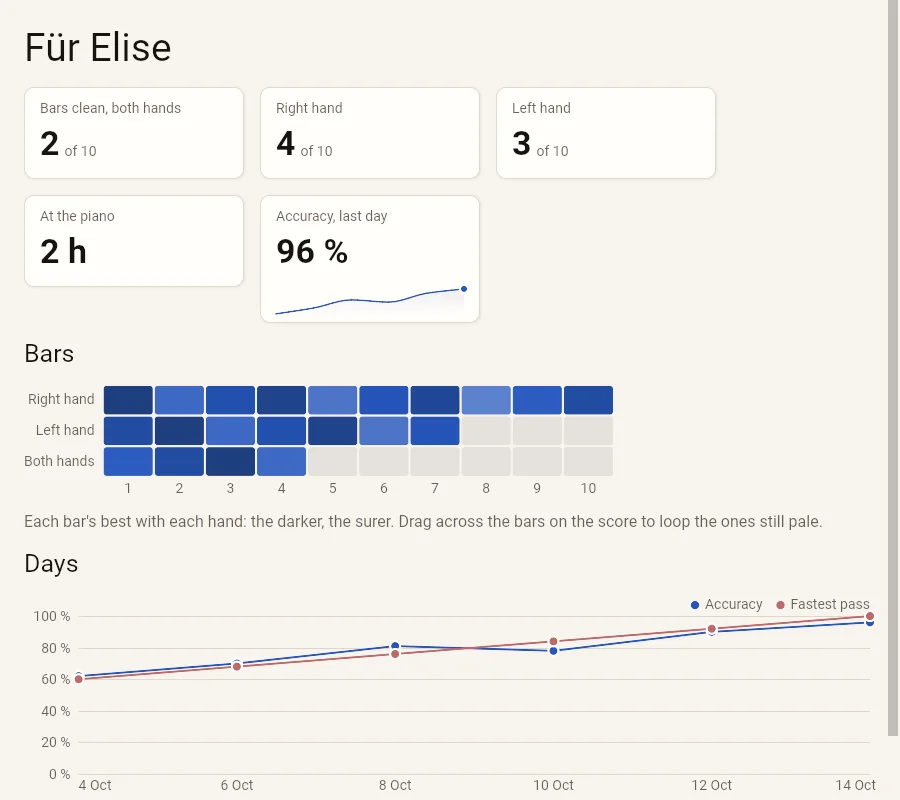
  • Each bar's best with each hand is kept, and tinted on the score while you practise: the sure bars and the pale ones, at a glance.
  • Practise ▸ Progress maps the whole piece, and the days you sat at the piano — how sure, and how fast.
  • Kept on your device, for every piece you practise, and nowhere else.
PianoLab's Progress window for Für Elise: 2 of 10 bars clean with both hands, 4 with the right and 3 with the left, 2 hours at the piano, 96 % accuracy on the last day; a grid of the ten bars for each hand, darker where surer; and a chart of the days, accuracy and the fastest pass rising together.
Wait for meHolds at each chord until you play it
Play alongKeeps time, and judges every note
Right, left, bothOne hand at a time, the other played for you
LoopThe bars you drag across, round and round
SpeedSlower or faster without touching the piece's tempo
TrainerRaises the tempo after each clean pass
Count inA bar of clicks before it starts, and a metronome under it
RecordPlay to the click, and it is written down as a score

Read it, hear it

The score engraved. The notes falling onto the keys.

Two ways of reading the same music, one above the other: the grand staff as a printed score draws it, and the notes falling onto an 88-key keyboard, each hand its colour. Choose Score, Falling or Both.
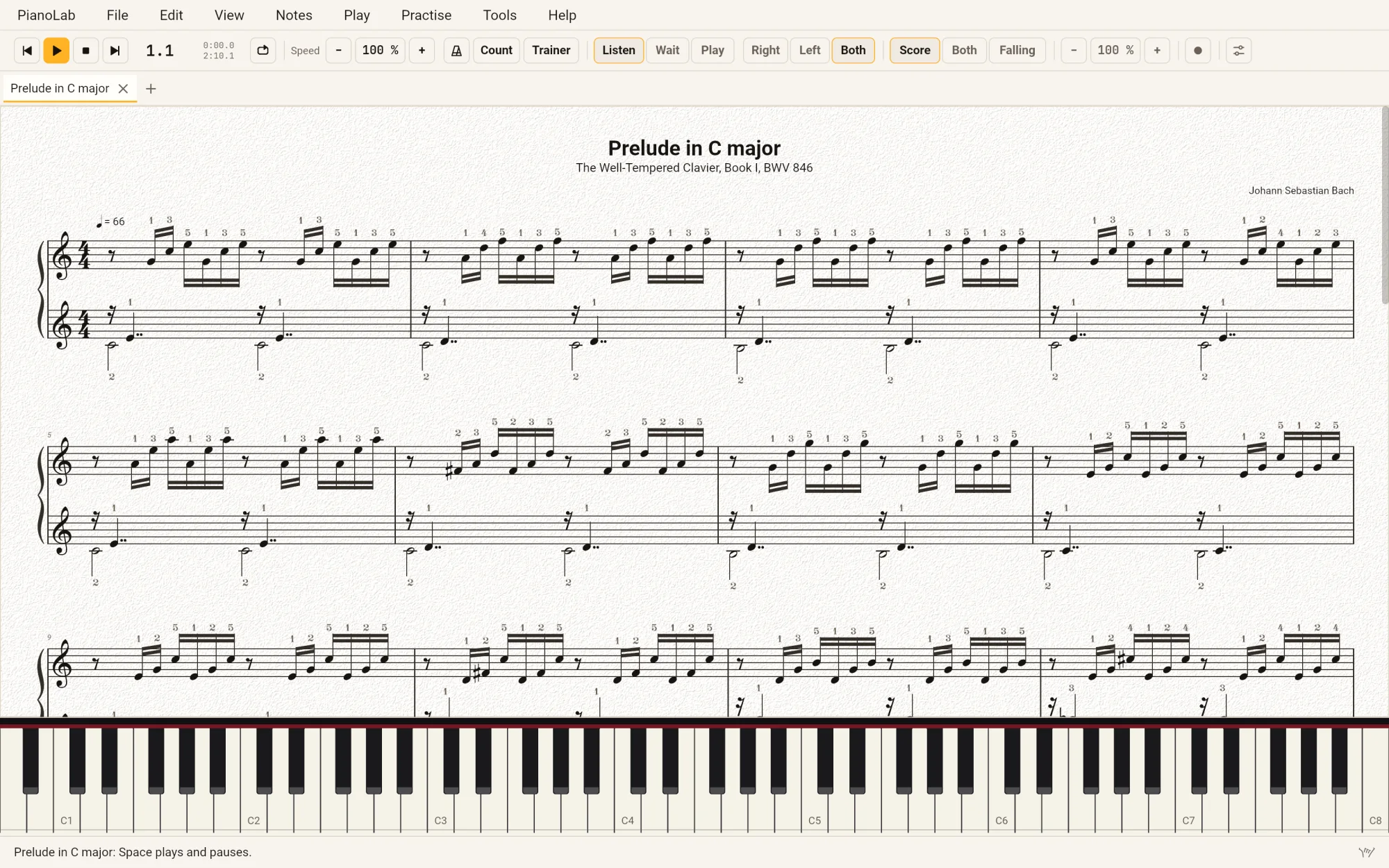
PianoLab's Score view with Bach's Prelude in C major: the title and The Well-Tempered Clavier, Book I, BWV 846 at the head of the page, three systems of the grand staff with a finger number over every note, and the keyboard below.
Bach's Prelude in C as a page: the grand staff engraved, a finger over every note

A score you would print.
A piano that sounds like one.

  • Engraved. A real music font, beams by the meter, voices, slurs, dynamics between the staves, Ped. and its release, and fingering — as a page, wrapped or in one line, zoomed as you like, the playback cursor turning the page.
  • The notes falling onto the keys. Each hand its colour, each note its finger, a glow where a note lands; the keyboard lit with what sounds, what comes next and what you hold.
  • A modelled grand. Stiff strings, unisons beating, a felt hammer brighter the harder you play, dampers, the sustain pedal ringing the strings in sympathy, the soft pedal — or voiced bright, as an electric grand or a honky-tonk.
  • Fingers as teachers give them. Every note the score leaves unfingered is fingered for you, by a model of the hand — all 48 major and harmonic minor scales as teachers finger them.
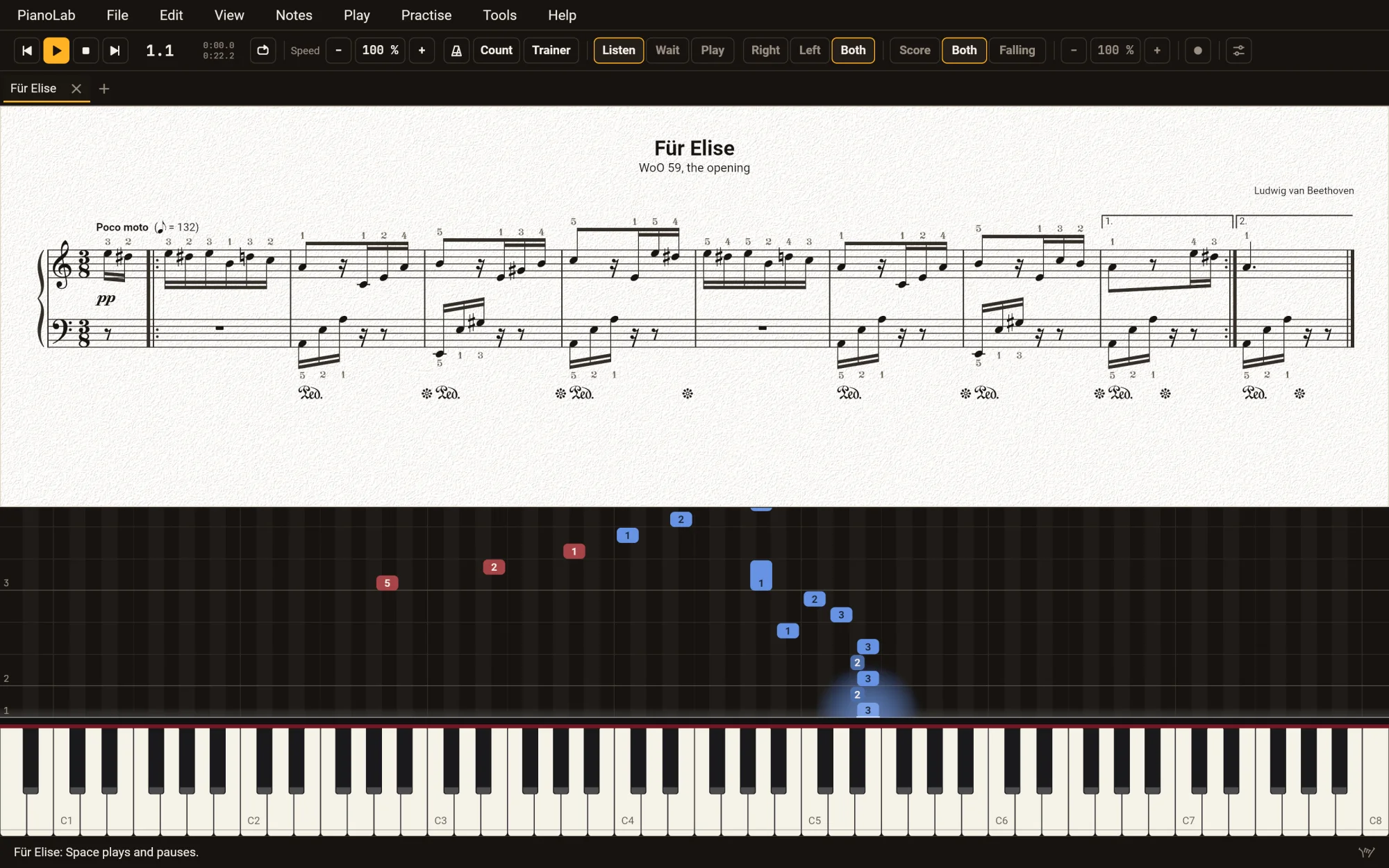
PianoLab in the dark theme with Für Elise: the score on its light page above, pp and the pedal marks under the staves, and the opening's notes falling onto the keyboard below, red for the left hand and blue for the right.
Für Elise in the dark theme — the score stays a page, because it is a sheet you would print

Write it down

Type the notes. Or play them.

N starts note input, a letter is a note and 1 to 7 its length — the keys MuseScore users already know — or play a chord on a MIDI keyboard and it is written. Every edit can be undone, and every key is yours to change.
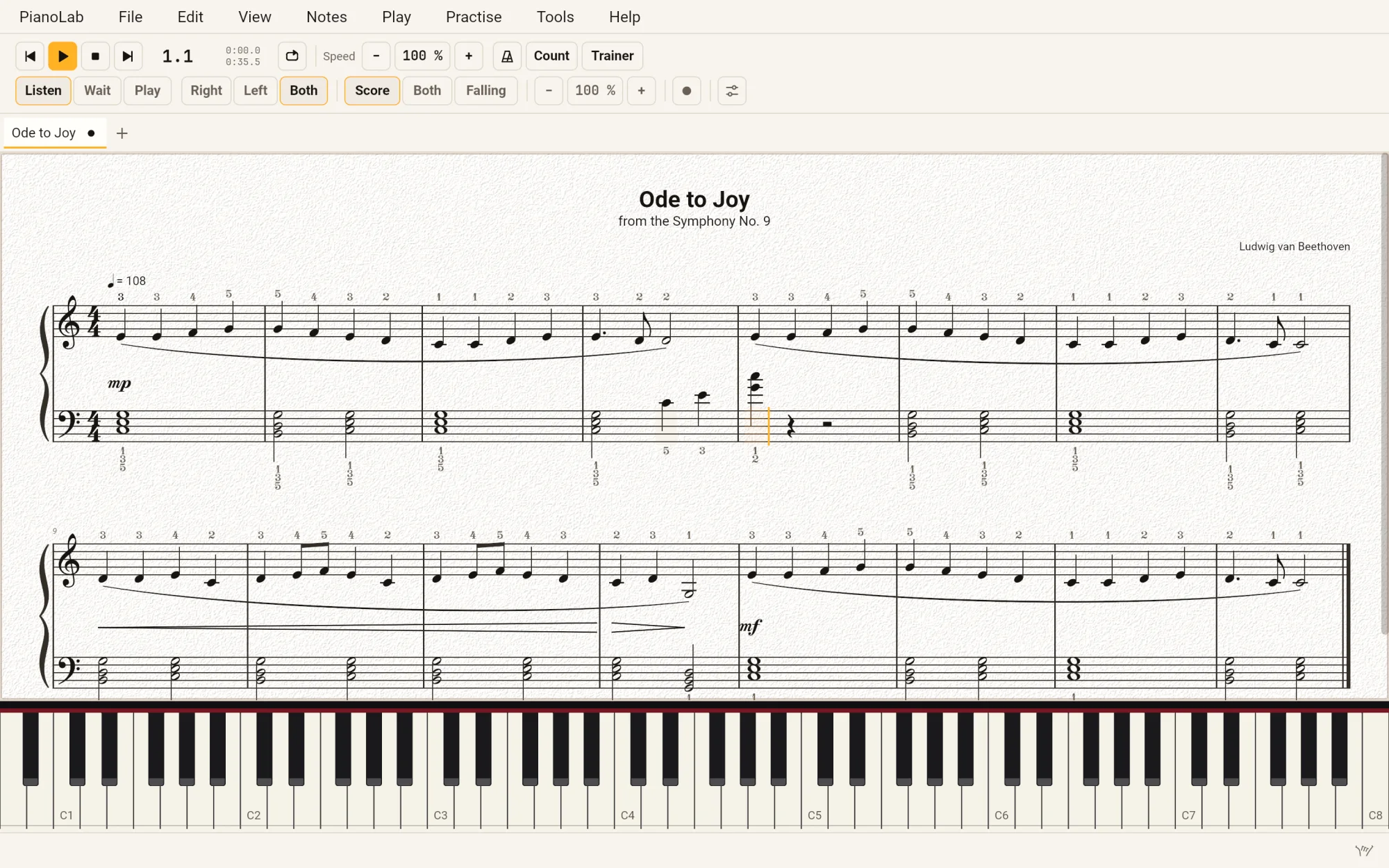
PianoLab writing in Ode to Joy: the Score view, the caret in bar 5 just after a chord written there, the fingers of every note suggested over and under the staves.
N
Note input, on or off
A…G
The note; with ⇧, added to the chord
1…7
Sixty-fourth to whole note; . dots it
↑↓
A semitone up or down; with ⌘, an octave
⌥2…⌥9
A second to a ninth above
TSP
Tie, slur, sustain pedal
⌘Z
Undo; ⇧⌘Z redoes
Space
Play or pause
  • Chords from your keyboard. In note input, a chord played on a MIDI keyboard is written as one.
  • Everything a piano score says: dynamics and hairpins, staccato, accents and ornaments, slurs and ties, the sustain and soft pedals, fingering, notes drawn on the other staff.
  • Bars inserted, added, deleted and fixed; cut, copy and paste, and paste bars between.
  • Play, and it is written down. Record: play to the click and what you played comes back as a score — quantised, the hands split, spelled in the key, the pedal marked. Play it slowly: it is written at the tempo you chose.
  • Every key is yours to change in Settings, and a key already taken is named before you take it.
  • Print, or export PDF and SVG, as the screen draws the page.

Drills

Note reading. Scales in every key.

The ten minutes before the piece, in the same program.
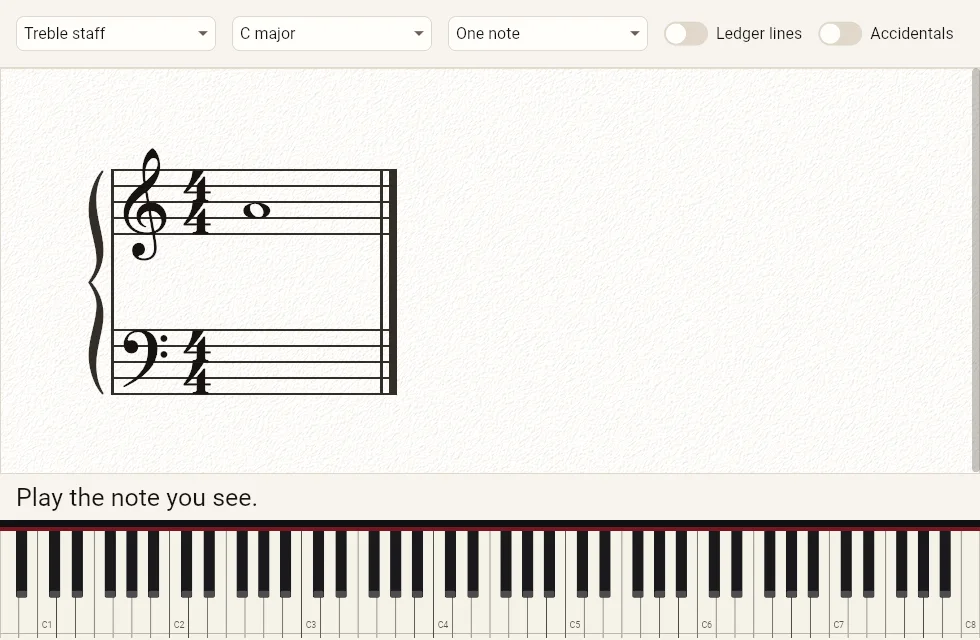
A note on the staff:
play it.

  • Treble, bass or both, out to the ledger lines, in any key, with accidentals or chords.
  • The notes you miss come back sooner, until they don't.
  • Answer on a MIDI keyboard, the keys on screen, or the computer's keys.
PianoLab's Note Reading: treble staff, C major, one note; a note on the grand staff, the words Play the note you see, and the keyboard to answer on.

Scales and arpeggios,
fingered.

  • In every key: scales, arpeggios, broken chords, cadences and five-finger positions.
  • One hand or both, in parallel or in contrary motion, over the octaves you choose.
  • Fingered as teachers finger them, previewed as you choose, then practised like any piece — waiting for you, or keeping time.
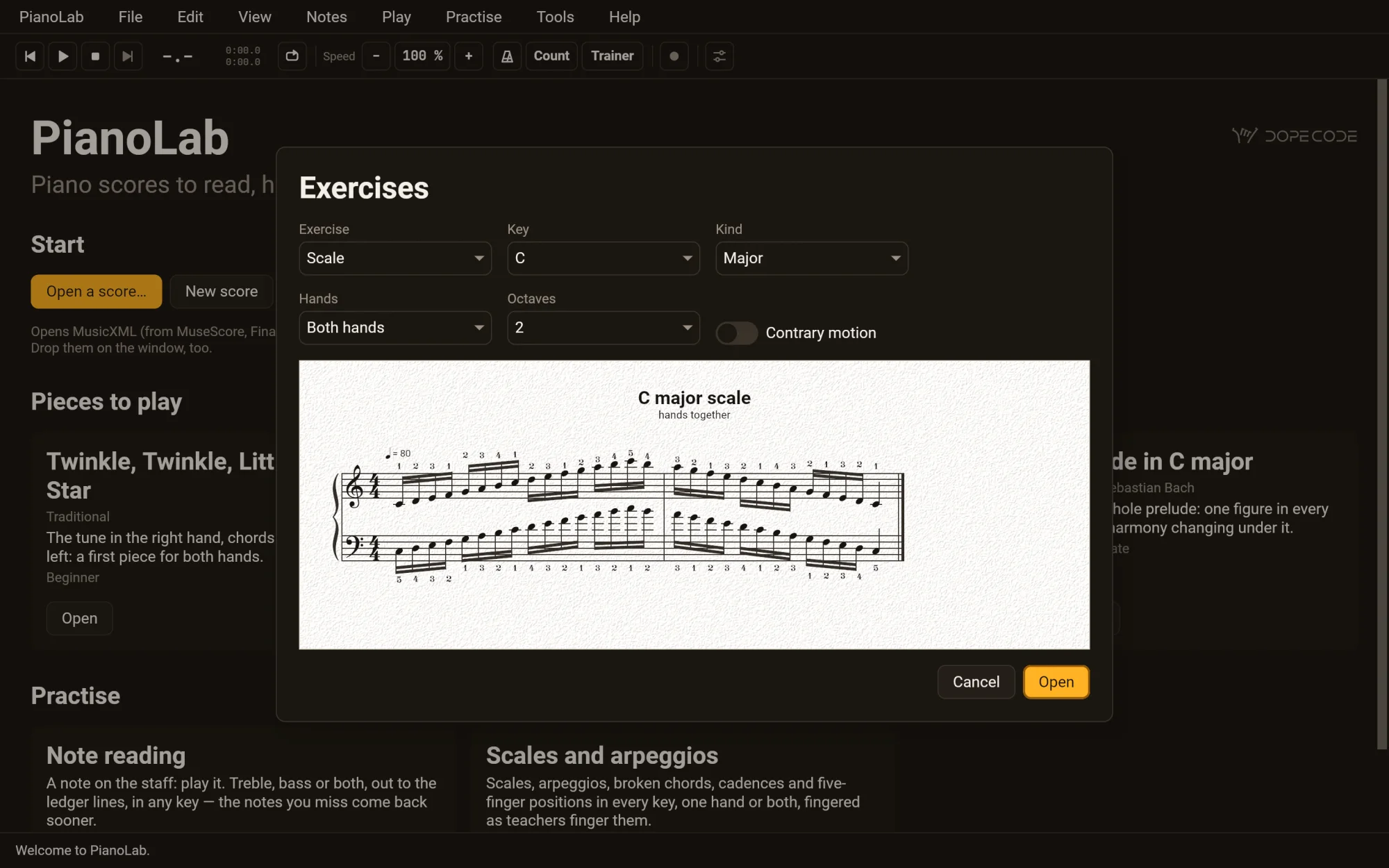
PianoLab in the dark theme with the Exercises sheet open: scale, C major, both hands, two octaves, and the C major scale hands together, fingered, on its light page.

iPhone & iPad · App Store

Your keyboard, plugged into your iPad.

Not a companion app: the same PianoLab, the screen its window. Plug a MIDI keyboard or a digital piano into an iPad or an iPhone with a USB cable and it is heard at once — the score and the falling notes on the music stand, wherever the piano is.

A score on the music stand.
Every note heard.

  • A MIDI keyboard is found within a second, and followed if it is unplugged and plugged back in. No keyboard? Play the one on screen.
  • It plays with the device silenced, and beside the music in another app.
  • Scores from anywhere Files reaches — the device, iCloud Drive, a server — and saved as a copy where you choose.
  • No connection needed: in a practice room, on a train, at a lesson.
  • Unsaved work is kept every five seconds, since iOS may end an app in the background without a word, and offered back on the next launch.
Download PianoLab on the App Store

· One app for the iPhone and the iPad, iOS 18 or later
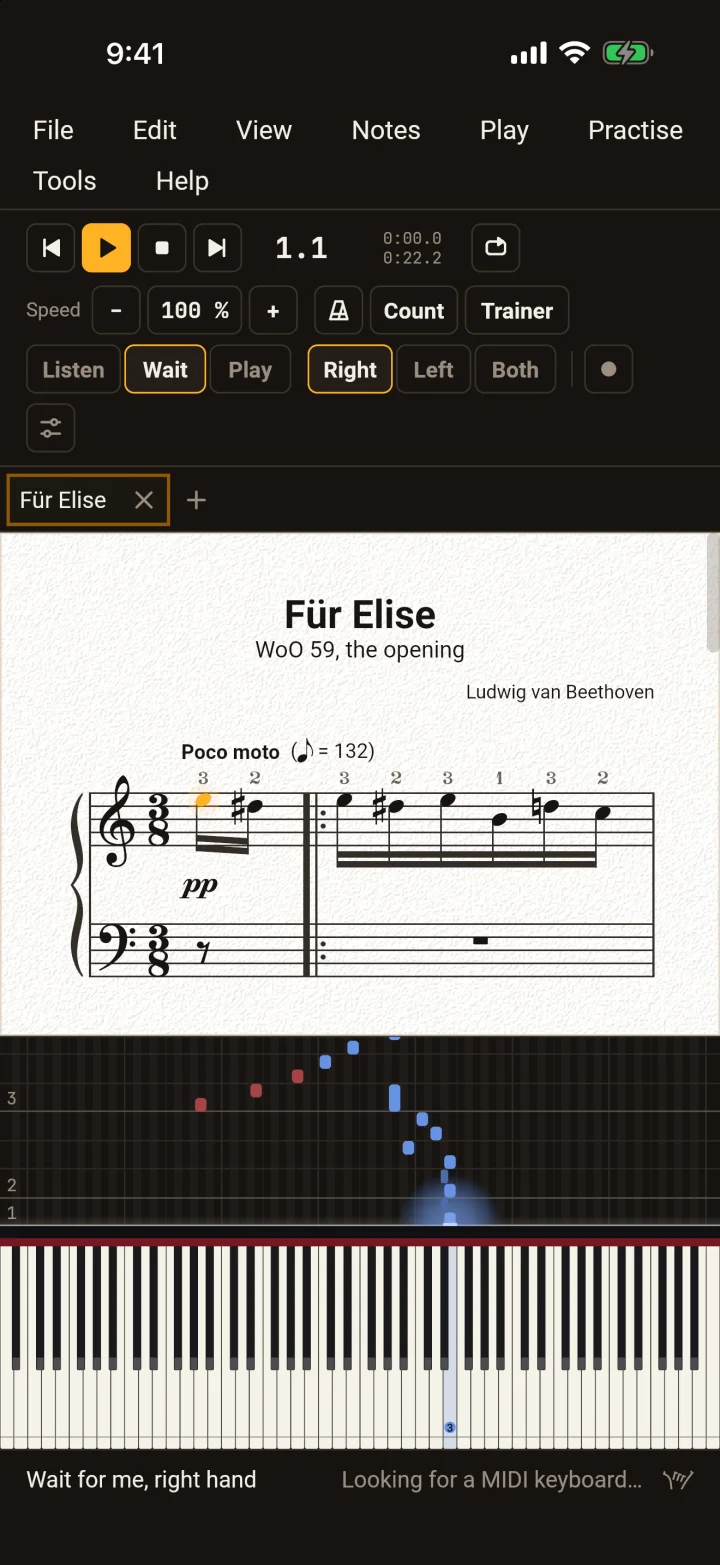
PianoLab on an iPhone in the light theme, playing: the score with its playback cursor above, the notes falling onto the keyboard below.
PianoLab on an iPhone in the dark theme, the score on its light page and the keyboard below.

On an iPad,
the whole piece in view.

  • The score, the falling notes and all 88 keys together, the whole screen, every way round; in Split View or Stage Manager beside another app.
  • A tap is a click: Open, Play, Wait for me — and the keys on screen to play.
  • A hardware keyboard has the desktop's keys: note input, letters, arrows, ⌘ shortcuts.
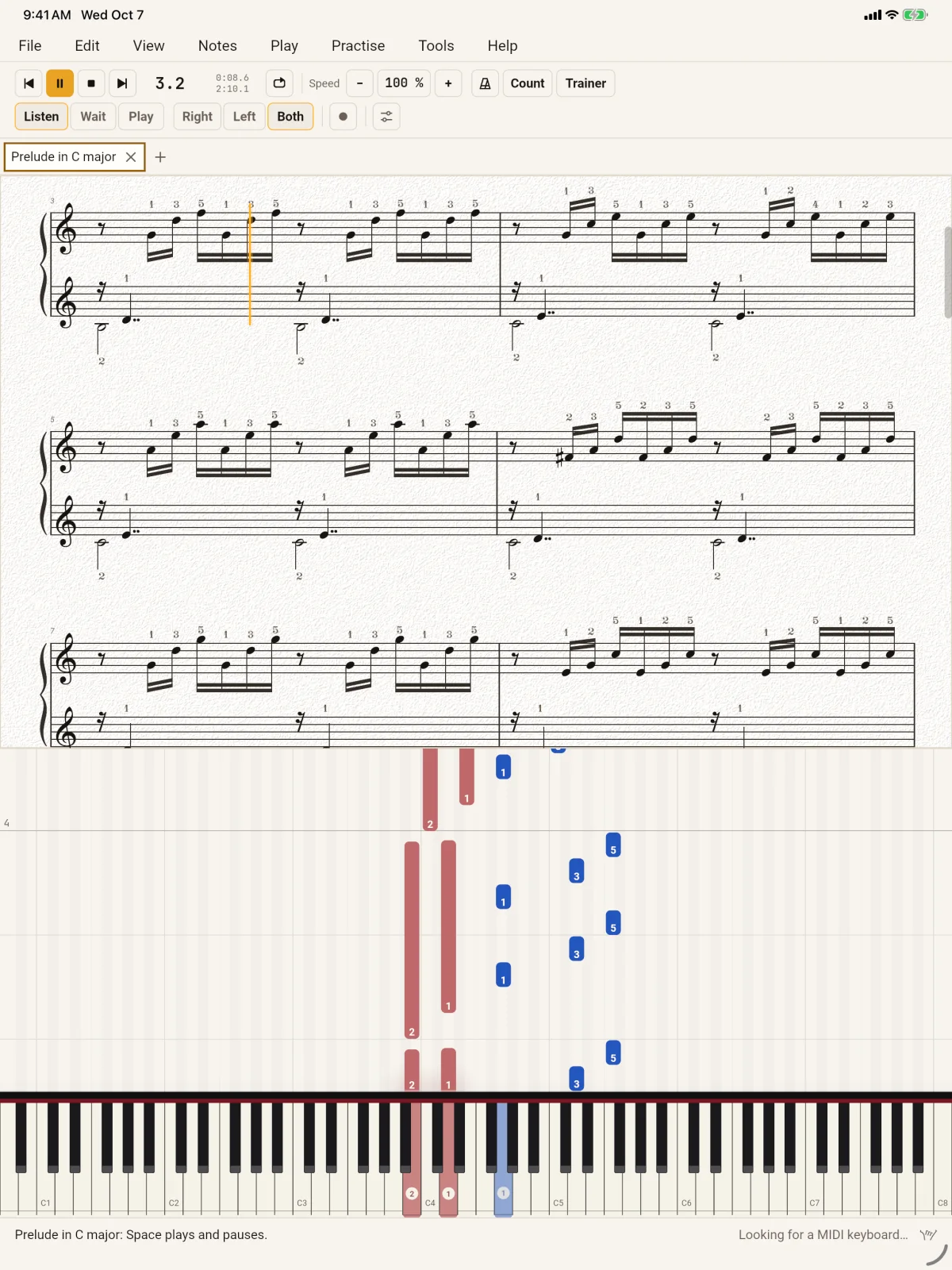
PianoLab on an iPad: the score above, the notes falling onto the full 88-key keyboard below.

Your files

Opens the scores you have. Says what it could not.

A MIDI file says when notes sound, not how they are written, so PianoLab writes it as a pianist would read it. And an export says what its format cannot hold, once the file is written. Nothing is lost quietly.

readswrites
PianoLab.gpianoyesyes — its own, holding everything a score can
MusicXML.musicxml .xml .mxlyes — from MuseScore, Finale, Sibelius, Dorico and the libraries of free scoresyes
MIDI.mid .midi .karyes, as a score a pianist can read: quantised, the hands split, voices where notes overlap, spelled in the key, the pedal from the fileyes
PDF, SVG—yes, as the screen draws the page
WAV—yes, the piano as it plays

Unsaved work is autosaved, and offered back after a crash or a closed tab.

Compared

Falling notes and the score, in one.

Synthesia teaches with falling notes; MuseScore writes scores. PianoLab does both on one score, and keeps what you played.

SynthesiaMuseScorePianoLab
practisingfalling notes; waits for you; each hand aloneplays a score back, loops itfalling notes and the engraved score; waits for you, or keeps time and judges every note; each hand alone, the other played for you; a trainer that speeds up only after a clean pass
the scoresheet music made from MIDIengravedengraved, and coloured by what you played
writing—a full editorMuseScore's keys; chords from a MIDI keyboard; every key yours to change
fingersas the file has themwritten by handthe written ones, and suggested for every other note
playing to it——Record: play to a click and it is written down as a score
progressscores per song—each bar's best with each hand, and the days at the piano
drills——note reading; scales, arpeggios, broken chords, cadences, five-finger positions in every key
sounda sampled pianosampled instrumentsa modelled grand, its strings ringing in sympathy under the pedal
everyone—partlya screen reader walks the score chord by chord; light, dark and high contrast; fifteen languages

What they still do that PianoLab does not: Synthesia's song store and lighted-key hardware; MuseScore's every instrument and ensemble, lyrics, parts and its library of scores — whose MusicXML PianoLab opens. PianoLab is for the piano.

Fifteen languages

Note names the way your teacher says them.

English, German, French, Spanish, Italian, Portuguese (Brazil), Dutch, Polish, Russian, Ukrainian, Czech, Swedish, Turkish, Japanese and Simplified Chinese — every menu, dialog and status line, and what each piece teaches. PianoLab starts in your system's language and names the notes and the keys as pianists in it do.
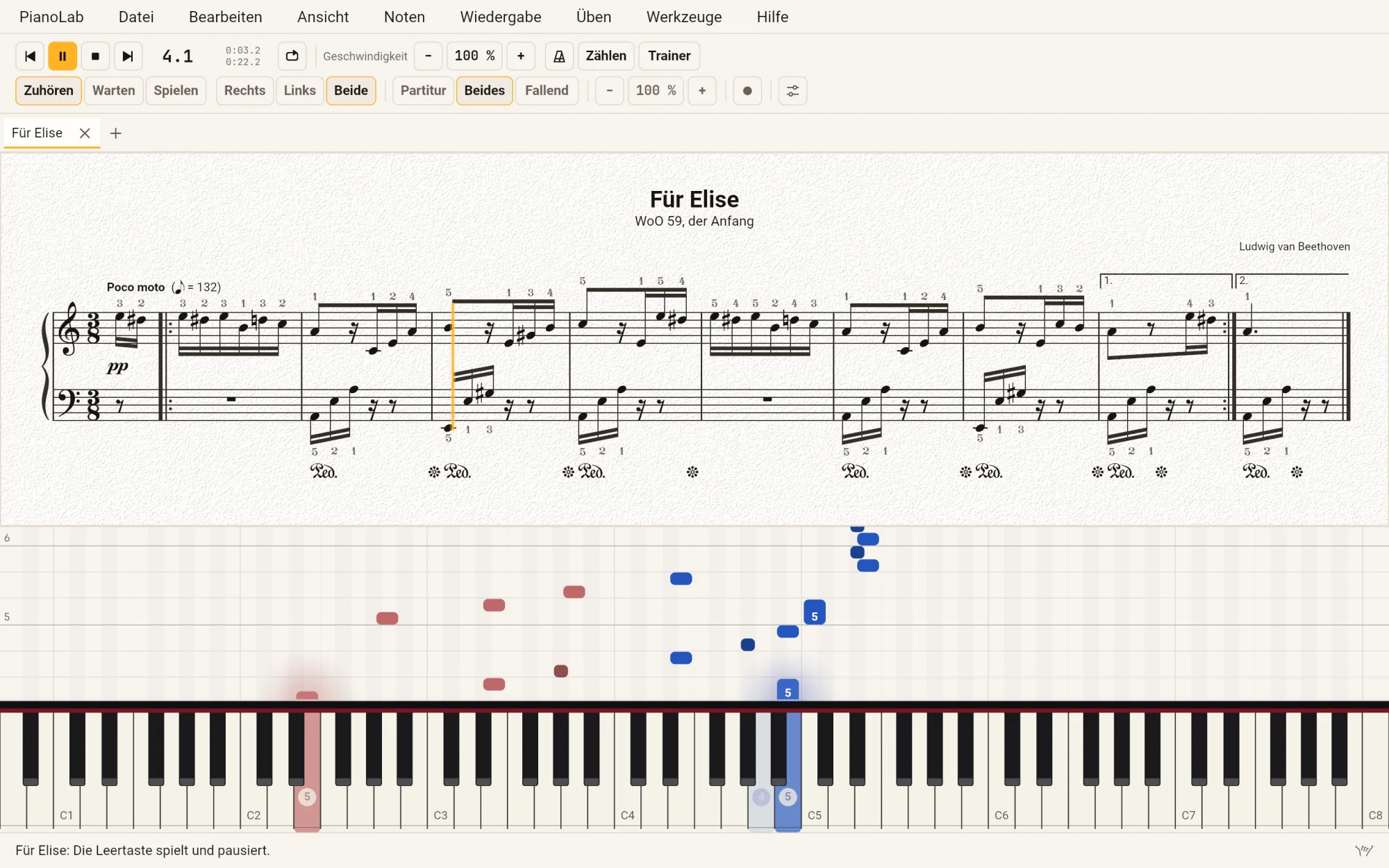
PianoLab in German with Für Elise playing: the menus Datei, Bearbeiten, Ansicht, Noten, Wiedergabe, Üben, Werkzeuge, Hilfe; Zuhören, Warten and Spielen on the toolbar; the score above and the notes falling onto the keys below.
In German: Für Elise playing, the menus and the keys in German
notesin
lettersC D E F G A BEnglish, Dutch, Japanese, Chinese, Portuguese, Russian, Ukrainian, Turkish
GermanC D E F G A HGerman, Polish, Czech, Swedish
solfègeDo Ré Mi Fa Sol La SiFrench, Italian, Spanish, each in its own spelling; any language, by choice

Settings chooses another way of naming the notes in any language. A file always keeps letters, so a score reads the same on every machine.

In any browser

Try it, or learn with it, anywhere.

Open PianoLab in a browser tab and it is all there: the pieces it comes with, the falling notes, the waiting, the grand. Nothing to install and no account — so it is there for a lesson on a school computer, or for a student opening the score their teacher sent.
pianolab.dopecode.com/app/
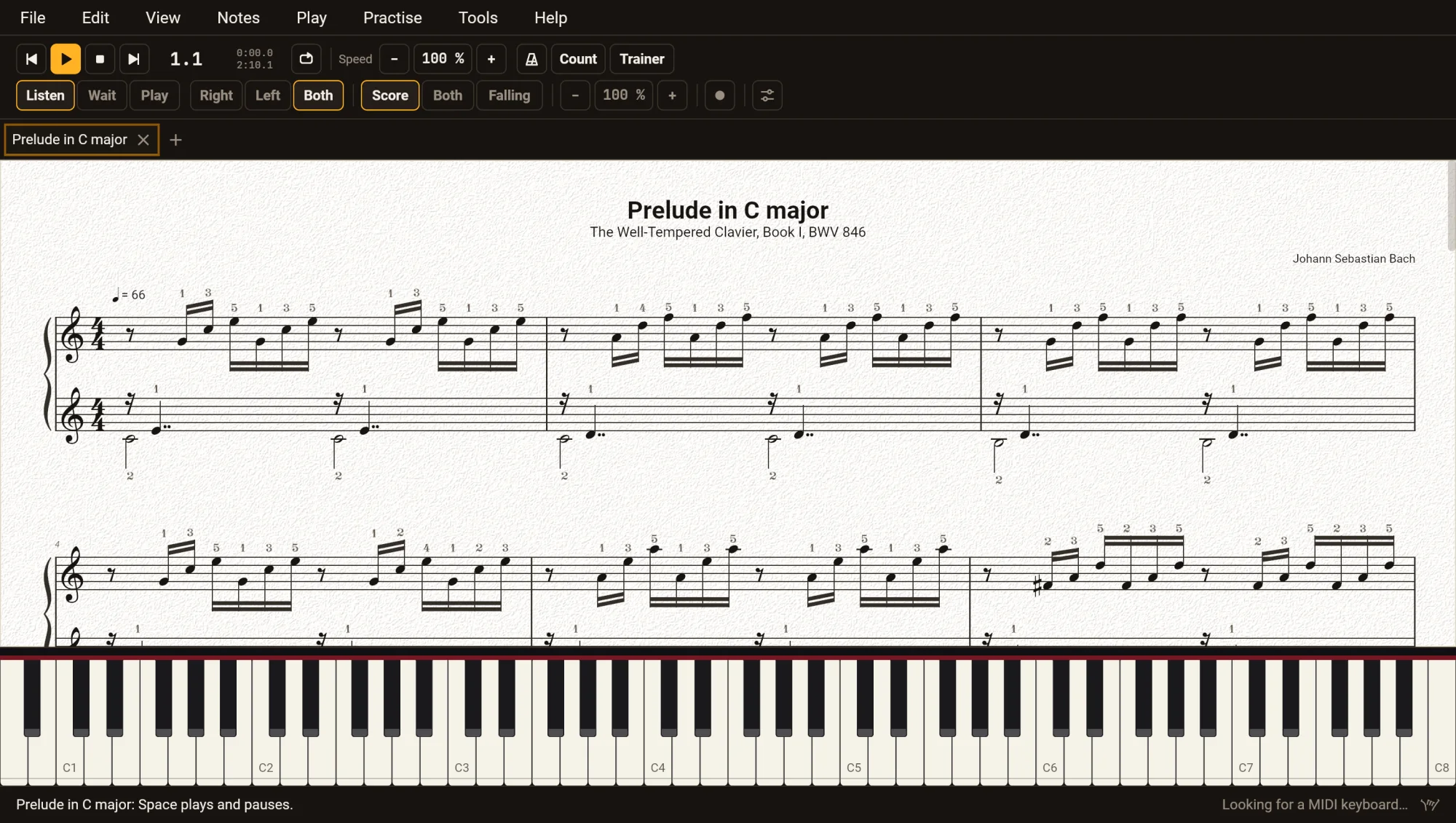
PianoLab in a browser in the dark theme with Bach's Prelude in C major open: the menus File to Help in the page, the toolbar, the score on its light page, the keyboard, and the status line looking for a MIDI keyboard.

· Sound starts when you first press Play: a browser waits for you to do something

Why the app

The browser is for trying it and for a lesson anywhere. The app is the one you practise with every day.

in a browseriPhone and iPad app
a MIDI keyboardheard in Chrome, Edge and Firefox on a computer; Safari, and every browser on an iPhone or iPad, cannot hear oneplugged into the iPhone or iPad, and heard at once
your scoresopened from your computer; every Save is a downloadopened from and saved into Files, iCloud Drive or a server, wherever you choose
no connectionneeds one, and about 10 MB the first timeworks anywhere: a practice room, a train, a lesson
the screeninside the browser's windowthe whole screen, every way round — on an iPad, beside another app in Split View
playing alongalongside whatever your computer playswith the device silenced, and beside the music in another app
Download PianoLab on the App Store

Privacy, itemised

Claims you can check.

The specific version, phrased so that you could go and verify it. The formal version is DopeCode's privacy policy.

your scores
Read and written where you say, and nowhere else. No account, no cloud of ours, no library to import into: a score is a file.
what it sends
Nothing. No analytics, no crash reporter, no network of its own. In a browser the page downloads the program from this site and then talks to no one; a file you open is read inside the page.
what you play
A MIDI keyboard is heard by PianoLab, on your device, to judge the notes and to write down a recording — which is a score you save where you choose. There is no microphone: PianoLab never listens to the room, and in a browser the page is not allowed the microphone at all.
your progress
Each bar's best and the days at the piano are kept on your device, in PianoLab's own settings, for you alone.
unsaved work
Kept on your device: the application's own folder on a computer, its own storage on an iPhone or iPad, this site's storage in your browser — and offered back to you, never to anyone else.
what it makes
A PDF, SVG, WAV or MusicXML file names PianoLab <version> as its producer, and nothing about you or your machine.

The honest part

What it does not do.

Better read here than found out afterwards.

Not in PianoLab

  • It does not hear an acoustic piano. It listens to a MIDI keyboard or a digital piano with MIDI, the keys on screen or the computer's keys — never a microphone.
  • No song store. It comes with four pieces; the rest are your MusicXML and MIDI files, and the libraries of free scores have thousands.
  • No other instruments: no lyrics, parts or ensembles. PianoLab is for the piano.
  • No MIDI out to a sound module, and no lighted-key hardware.
  • No Android, and no sync or cloud library: a score is a file, wherever you keep it.

Where the platform gets in the way

In a browser PianoLab cannot save back over the file you opened, so Save is a download every time and there is no list of recent files. A MIDI keyboard is heard only where the browser has MIDI — Chrome, Edge and Firefox on a computer, not Safari. Printing a long score or exporting WAV makes the page wait until it is done.

On an iPhone or an iPad the app is given a copy of a file and never its place, so Save saves a copy where you choose, every time.

Help

The questions people ask.

Will it hear my piano?

A digital piano or keyboard with MIDI, yes — over USB, on a computer, an iPhone or an iPad. An acoustic piano, no: PianoLab listens to MIDI, never to a microphone. With no keyboard at all, play the keys on screen, or the computer's keys (Z S X D C V … with the keyboard on screen selected).

How do I connect my keyboard?

Plug it in, before or after PianoLab opens: it is found within a second, and followed if it is unplugged and plugged back in. With more than one, Settings ▸ MIDI chooses which. In a browser, the browser asks you first whether the page may use MIDI devices.

Where do I get scores?

Any MusicXML file — .musicxml, .xml or .mxl — from MuseScore, Finale, Sibelius or Dorico (export as MusicXML), or from the libraries of free scores online; and MIDI files. Four pieces come with it, on the welcome screen.

A MIDI file does not look like the printed score.

A MIDI file says when each note sounds, not how it was written, so PianoLab works the score out: it quantises, splits the hands, finds voices and spells the notes in the key. Most files read well; where the book matters, a MusicXML file of the same piece keeps what its writer meant.

There is no sound.

In a browser, sound starts with the first Play (Space) or the first key you play: browsers wait for you to do something before a page may play. On a computer with no output device the status line says No sound, and everything else works.

It closed before I saved.

Unsaved work is autosaved — every 30 seconds on a computer, every 5 in a browser or on an iPhone or iPad — and offered back the next time PianoLab opens. Save it to keep it.

Does the browser version upload my scores?

No. The file you choose is read inside your browser, and what you save is handed back to you as a download. This site sends the program, and that is all it does.

Is there a Mac, Windows or Linux version?

PianoLab for the Mac is coming. Until then — and on Windows or Linux — the browser version is the same program, with the same files and the same keys.

Still stuck? Write to hello@dopecode.com with your PianoLab version (Help ▸ About) and what it said. If a score opens wrongly, the file itself helps most — when it is yours to share.

Browser · iPhone · iPad · Mac

One program, every screen.

PianoLab is the same program wherever it runs: on the iPhone and the iPad from the App Store, and in any browser to try it or to learn with it.

  • Any browser up to datetry it now
  • iPhone and iPad iOS 18 or laterApp Store
  • Mac macOS 11 or latercoming

· Questions first? Help answers the common ones.